8 Basic Intermediate Commands for Every Linux User | Part - 2


Linux Intermediate Commands

Let's learn the more must know Linux command. You are the beginner or new user then you have need of this post to know more about command. Read the previous part of this command click here.

          C language tutorials for beginners

Intermediate Commands for Every Linux User

1.echo

"echo" is a command that helps us move some data, usually text into a file. For example, if you want to create a new text file or add into an already made text file, then you just need to type in "echo hello, my name is Rahul>>new.txt". You do not need to separate the spaces by using the backward slash here because we put in two triangular brackets when we finish what we need to write.


2.cat

The cat command is used to display the contents of a file, usually used to easily view programs.

cat command

3. zip, unzip

zip is a command used to compress files into a zip archive, unzip is used to extract files from a zip archive.

                  Download Hacking E-Books


4. nano, vi, jed

nano and vi are already installed text editors in the Linux command line. nano is a good text editor which denotes keyword with color and recognize most of the languages. Vi is simpler than nano. You can create a new file named "check.txt", you can create it by using the command "nono check.txt". You can save your file after editing by using the sequence. ctrl-X, then Y (or N for no). In my observation, using nano for HTML editing doesn't seem so good, because of its color, so I recommend Jed text editor. We will come to installing packages soon. 


nano and vi


5. sudo

sudo is a widely used command in the Linux terminal. sudo stands for "SuperUser Do". So, if we want any command to be done with administrative or root privileges, then you can use the sudo command. For Example, if you want to edit a file like viz.alsa-base.conf which needs root permission, you can use the command -sudo nano alsa-base.conf. You can enter the root command line using the command "sudo bash", then type in your user password. You can also use the "su" to do this, but you need to set a root password before that. For that, you can use the command "sudo passwd" (it is passwd, not password). Then type in the new rot password.

  Download let us c E-Book - by Yashwant Kanetkar


 sudo stands for "SuperUser Do"


6. df

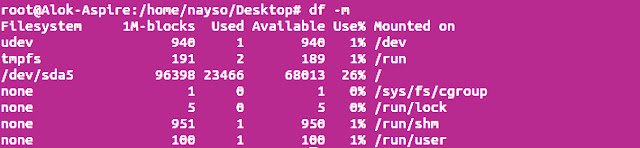
The df command is used to see the available disk space in each of the partitions in your system. You can just type in df in the command line and you can see each mounted partition and they're used/available space in % and in KBs. If you want it shown in megabytes, you can use the command "df-m"


df command is used to see the available disk space


7. du

du is a command to know the disk usage of a file in your system. If you want to know the disk usage for a particular folder or file in Linux, then you can type in the command df and the name of the folder or file. For example, if you want to know the disk space used by the folder Documents in Linux, you can use the command "du Documents". You can also use the command "ls-lah" to view the sizes of all the files in a folder.


              Download Turbo C++ Program Compiler


disk usage of a file in your system


8. tar

tar is a command used to work with tarballs (or files compressed in a tarball archive) in the Linux command line. It has a long list uses. It can be used to compress and uncompress different type of tar archives like .tar, .tar-gz, .tat-bz2. etc. It works on the basis of the arguments given to it. For example, tar -cvf for creating a .tar archive, -xvfto untar a tar archive, -tvf to list the contents of the archive.etc.

Compile C program with gcc compiler in Windows 10


Compile C program with GCC compiler

The GNU Compiler Collection (GCC) is a compiler system produced by the GNU Project supporting various programming languages. You can compile by using the GCC command in Windows 10 Bash on Ubuntu. GCC is a key component of the GNU toolchain and the standard compiler most Unix-like operating system. 

       C Programming Tutorials for Beginners

       Downloading Programming E-BOOK

Compile C program on windows 10


1. Enable Bash on Windows 10

If you don't know how to Enable/Activate Bash on Ubuntu on Windows 10, then check out our this tutorial Learn Stepwise to Enable Win 10 Subsystem for Windows 10.


2. Install gcc compiler in Windows 10 Bash

Enter the following command in your bash terminal to Install GCC compiler in Windows 10 Bash. Installation Guide for Windows.

                                         apt-get   install gcc           

Windows 10 Bash


After successfully the compiler is installed on your Windows 10 Bash. Type the following command to verify that gcc is installed: 
                                         which gcc

Example Outputs: 

                                        /usr/bin/gcc

How to find out the version of GCC compiler


                                       gcc   --version

Install gcc compiler in Windows  Bash


3. Write your first program on bash

Use any type of TEXT EDITORS such as vim or nano to create a C program called hello.c:

                             vim hello.c   or   nano hello.c

how write program on bash


Type your lines of  programming in command screen (example):


write program lines in text editor app

After writing your program, press ctrl+o and click on  Enter key to save your program. To quiet press Ctrl + x.


4. How Compile & Run Program

Compile hello.c  C program, and create a .exe (executable) file called hello, enter:

                                           gcc   hello.c   -o   hello       

To execute program first, enter: 


                                                         ./hello

 Output:


                                       hello world

gcc compiler Windows 10

10 Basic Linux Commands for Beginners


Linux Commands

Linux is the open source Operating System, but it is highly secure. Basically, Linux OS used for professional working in the IT Department. Every Linux user needs to use Terminal, but you can't operate Terminal if you don't know about the Basic Commands of Linux. In this post, I have given the Basic information of commands and Basic Commands. So read it carefully and use it.

                    Turbo C++ all Shortcuts Keys

                    A solution of Turbo C++ Common Iusses

Linux command


1. pwd

When you first open the terminal, you are in the home directory of your user. To know which directory you are in, you can use the "pwd" command. It gives the Absolute Path, which means the path that starts from the root. The root is the base of Linux filesystem. It is denoted by the forward slash (/). The user directly is usually something like /home/rahul/...


pwd" command. It gives the Absolute Path


2. ls or l

The "ls" command is used to know what files there in the directory you are in. You can see all the hidden files by using command "ls -a".

                   Turbo C++ Program Compiler Download

                   C Programming Tutorials for Beginners 

"ls -a" command


3. rm

The rm command is used to delete files and directories. rm cannot delete a simple directory. "rm -r" is used to delete a directory. In this case, deletes both the folders and files in it.  

delete a directory

4. touch

The touch command is used to create a file. It can be anything, from an empty text file to an empty zip file. EX -: "AAP62.txt"


                              Download Wireless Hacking [pdf] - eBook

                          Download All E-Books Click Here

to create a file

5. cp

The cp commands are used to copy files through the command line. It takes two arguments, the first one is the location of the file to be copied, the second is where to copy. 


cp commands

6. mv

The mv command is used to move any files through the command line. We can also use the mv command to rename a file. For example, if we want to rename the file "rahul" to "AAP62", we can use "mv rahul AAP62". It takes two arguments just like the cp command. 

move any file


7. cd

"cd" is the command to use go to the directory. For example, if you are in the home folder, and you want to go to the Documents folder, then you can type in "cd Documents". Remember, the command is case sensitive and you have to type the name of the folder exactly as it is. But there is a problem with these commands. Imagine you have a folder named "AAP62". In this case, when you type in "cd AAP62", the shell will take the second argument of the command as a different one so you will get an error saying that the directory does not exist. Here, you can use a backward slash (\). That is you can use "cd AAP62\RD" in this case. Spaces are denoted like this: If you just type "cd" and press Enter, it takes you to the home directory. To go back from a folder to the folder before that, you can type "cd.." . The two dots represent back.

command to use go to the directory

8. mkdir / rmdir 

The mkdir command is used when you need to create a folder or directory. For example, if you want to make a directory called "New Folder", then you can type "mkdir New Folder". Remember, as told before, if you want to create a directory named "New Folder AAB62", then you can type "mkdir New Folder\AAB62".

                 Software Installation Guide for Windows 

rmdir is the command used for deleting the directory. But, rmdir can only be used to delete an empty directory. To delete a directory contaning files, rm is used. 

The mkdir command is used when you need to create a directory

9. man & -help

To know more about command and on how to use it, the man command is used. It shows the manual pages of command. For example, "man cd" show the manual pages of the cd command. Typing in the name command name and the argument helps it show which ways the command can be used (Example -cd -help).


 -help


10. locate 

The locate command is used to locate a file in a Linux System, just like the search command in Windows. This command is useful when you don't know where a file saved or the actual name of the file. Using the -i argument with the command, helps ignore the case (it doesn't matter if it is Capital or Small). So, if you want a file that has the word "Hello", it gives the list of all the files in your Linux System containing the word "Hello"  when you type in "locate -i Hello". If you remember two words, you can separate it using an asterisk (*). For example, to locate a file containing the words "Hello" and "this", you can use the command "locate *Hello *this". #allaboutprogramming62

Comments System

blogger/disqus/facebook